Protect Word document - Protect document - Protect MS Word document
If you are searching that how to protect your MS Word document by password that no one can do any kind of changes with your document. So for protect your document by password there are some method which are given below.
To give a password to MS Word document first of all write something in your document then save your document by a name. To give a password to a document click on Office button then bring your mouse pointer to Prepare and lastly click on Encrypt document. Type a password and then again reenter password and lastly click OK as given step by step in pictures.
After protected your document close MS Word or click “Alt+F4” from keyboard. Then again start MS Word program. After open MS Excel program click on Office button then click Open or click Ctrl+O from keyboard. Select your protected document and then click open. Now as document will open it will give password without password it won’t work. Type the password and then click OK. As you click OK the document will directly open as given below.
Ans) The collection of fact and figure which is related with each other is called database. Arrangement of data in database is like this. There is a few example of database which uses daily. 1) Dictionary 2) Arrangement of books in library 3) Arrangement of Salary 4) Arrangement of Fee Now we will work on this database that how to create a “Employee” database. For example there are 200 employee in a company and the Boss of company wants to know information about employee like What is the Name, F/Name, Position, Salary, Join date, Picture, Phone no and Address of an employee so there is an example of employee database which is given below.
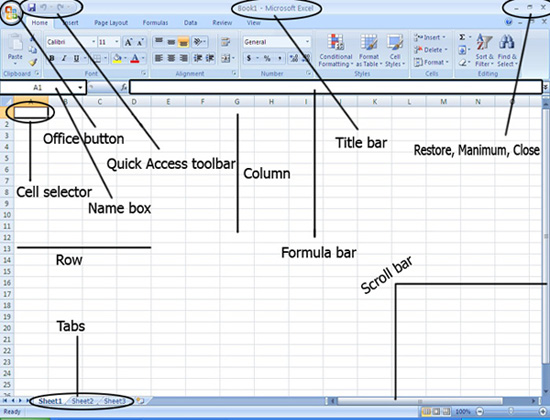
Microsoft Excel is a computer course which is a branch of Microsoft Office and its use for calculation. We can get a lot of work from MS Excel like make result sheet, Records, Project, Payment of salary and much more… Mostly we use MS Excel in banks, Offices, Business, factories and so more. We calculate our value with the help of formulas and functions in MS Excel. For example =sum(D2:D10)
Microsoft Word:- Microsoft Word is a computer learning course which is a branch of Microsoft Office. Microsoft Word allows you to perform make a text page with comprehensive tools which need you to create an advance page. For example you can make a style of your text and also you can add a picture. Microsoft Word use for to create a letter, Novel, Newspaper, Term paper, Result sheet, and much more…
Microsoft Access is a branch of Microsoft Office but it doesn’t come with other version of Microsoft Office. Microsoft Access is a ready made package from MS Office use to do several tasks projects, database, calculation, reports, and much more…
The database of Microsoft Office is made from 7 parts which are given below.
Open Microsoft Office - Open Microsoft Access - Open Microsoft Access with different methods
1)Click “Start” button then “All programs” and bring your mouse pointer to Microsoft Office and lastly click on “Microsoft Access”
2)Click “Start” button then click on “Run” and type “Msaccess” and lastly click “Ok”.
3)Click “Start” button then click on “Run” and then click on “Browse” button and select the location of Microsoft Access and lastly click on “Open” button. This is the address of Microsoft Access "C:\Program Files\Microsoft Office\Office12\MSACCESS.EXE".
After open Msaccess file click “OK” button from “Run”.
4)“Right click” on windows desktop bring your cursor to new and then choose “Shortcut” as given below.
After click on “Shortcut” click “browse” to choose the location of file. After select the file clicks “Open” and then click “next” as given in the picture. This is the address of Microsoft Access "C:\Program Files\Microsoft Office\Office12\MSACCESS.EXE".
Click “next” and lastly click on “Finish” button.
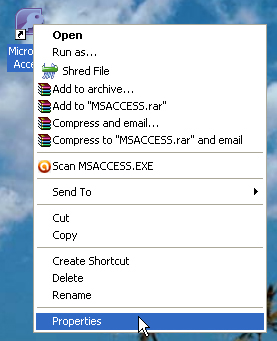
5)“Right click” on Microsoft access icon and click on “Properties” then go to shortcut menu and lastly type a shortcut in the front of “Shortcut key”. For example “Ctrl+Alt+A” and then click “OK” as given below.
6)Click “My computer” and go to “Local disk C” then “All programs”, “Microsoft Office”, “Office12” and lastly click on “Msaccess”.
Print preview command is use when you want to see your document that how it look when I will print it. To see your document click on “Office button” then bring your mouse pointer to “Print” and lastly click on “Print Preview” command. After click on “Print Preview” command you will see these options which are given below.
Print: From this command you can print your document.
Options: From this option you will directly go to “Display options”
Margins: With the help of this option you can fix the “Margins” of your page.
Orientation: From this option you can fix your page by “Portrait” or “Landscape”.
Size: From this option you can choose the size of your pages like letter, Tabloid, Legal, A3, A4, A5 etc… or also you can fix your page by the help of “More paper sizes…”
Zoom: By the help of this option you can fix “Zoom” of your pages.
100%: This is original view size of your page. If you click on this option then you will come on the original size your page.
One page: By the help of this option you can see only “One page” in “Print Preview”.
Two pages: From this option you will see two pages in “Print preview”.
Page Width: By the help of this option you can fix your “Page Width” by “Print Preview” screen.
Show Ruler: If you check the mark then you will see ruler on “Print Preview” and if you unchecked it then you won’t see ruler in “Print Preview” command.
Magnifier: If you check the marks then you will see magnifier in “Print Preview” area.
Shrink One Page: With the help of this option you can shrink your all pages by 1 page. For example you have 3 pages and you want “Shrink” all of them by one 1 so for this, we use this command.
Next page: From this option you can go to “Next page”.
Previous Page: From this option you can go to back Page.
Close Print Preview: With the help of this option you can close “Print Preview” command.
This command is use for print a file. If you want to print a file so First of all, click on “Office button” then click on “Print” command or click “Ctrl+P” from keyboard. After click on “Print” command these options will appear.
1)Printer
Name: Select your printer from this option
Properties: From this option you can fix your “Page size” and “Orientation” of page.
Find Printer…: From here you can find your printer.
2)Page range
All: It prints all of you document pages. For example you have 1 to 20 pages so if you select this option then you will print all of your Pages.
Current page: If you select this option then you will print only your current page.
Selection: This option will display on that time when you select you “Text” and if you choose this option so you will print only your select area which you have selected before “Print” command.
Pages: From here you can choose you pages. For example 1, 5, 6, 9. These are pages number.
3)Copies
Number of copies: From here you can select your pages copy. For example you have 10 pages in your document and you want to PRINT3 copies of every page so then write “3” in the front of “Number of copies”.
Collate: If you check this mark then you will PRINT your pages like 1, 2, 3, 4, 5 etc. Its mean it will print your “10” page from number by number and If you uncheck this mark then you will PRINT 3 copies of your 1st page then second, third…
4)Print what: Select your option which you want to print.
5)Print: Select your pages which page you want to Print, Old pages, even pages or all pages in range.
6)Zoom
Pages per sheet: How many pages you want to print in one sheet.
Scale to paper size: Which kind of “Scale paper size” you want to print.