Learning Microsoft Office 2007

Now learn Microsoft Office 2007 100% free

Learning Microsoft Office 2007

Now learn Microsoft Office 2007 100% free

Learning Microsoft Office 2007

Now learn Microsoft office 100% free

Pages

VLookup Function - Use VLookup - How to use VLookup

 VLookup Function - Use VLookup - How to use VLookup

Another exiting tutorial in Microsoft Excel which “how to use VLookup function”. “VLookup function” is most uses and most useful function. With the help of VLookup Function we can find a value by vertical table. “VLookup Function” means “V” means “Vertical” and “Lookup” means “search or find” so now I hope you all understand from this Excel function. Now let’s practically work on this function. Follow these steps to use VLookup function.

1) Start “Microsoft Excel 2007”.
2) Now select “6 columns” and “2 rows” as given below.


3) Now go to “Home” menu and click on “Marge and center” command as given below.


4) Now write “Computer items and their prices” in this cell and then “bold”, “color” and make “border” of the cell as given below.


5) Now make two other columns by name of “Items” and “Prices” and fill the information as given below.


6) Now also make another two columns by name of “Items” and “Prices” at below of “Items” and “Prices” table as given below.

 
7) Now type an “items name” at the below of second Items column as given below.

  
8) Now type the below function at the below of “Prices” as given below.
      =VLookup(F24,F9:G18,2,0)


9)       Now press “Enter”. 
10)  We have “F24” in function which is cell number of “Processor” at the below of Items then second is “F9:G18” which is the complete selected area of “Items” and “Prices” at the above table and the third is “2”, which means that our value available in second column of the selected table and the last one is “0”, we use “0” value for the “exact value”, “Exact value” means that as we typed we want that value.
11)  Now as we type “RAM” at the place of “Processor”, our value will directly change as given below.


Word to Pdf - Word doc to pdf - Convert word to pdf

 Word to Pdf - Word doc to pdf - Convert word to pdf

Hello friends how are you? I hope you all will fine. Friends, today I am going to teach you a very interesting and most wanted tutorial which is “how to covert Microsoft Word document to PDF”. I will work on 2 methods, I know a lot of methods but if I teach more method then our tutorial will become boring so therefore I teach only 2 methods for you all. To convert your “Microsoft Word” file to “PDF”, follow these steps which are given below.

1)  First download “deskPDF” software from below address.
        deskPDF 
 2) After downloaded, install “deskPDF” software.

 First Method:-


1) Now start “Microsoft Word 2007”.
2)  Click on “Office button” then Click on “Open” command or Press “Ctrl+O” from keyboard. Then choose your “Microsoft Word” document which you want to convert to PDF file. After selected of your document click on “Open” button.
3)  After open of you document, Click on “Office button” then click on “Print” command and lastly choose “Print” from “Print menu” or press “Ctrl+P” from keyboard as given below.


4) Now select “deskPDF” from “Name” then click “OK” as given below. 


5) After click on “OK” button, preparing process will start wait a few second. After process, “Save” menu will appear; now write a name in front of “File name” and then click “Save” as given below.


Second Method:-

1) “Right click” on your “Microsoft Word” document and then choose “Convert with deskPDF” option as given below.  


Create a chart - How to create a chart - How can i make a chart in Excel

Create a chart - How to create a chart - How can i make a chart in Excel


Hello friends how are you after a long time. I was busy in these days so sorry for this. Today is a new tutorial in “Microsoft Excel” which is “how to create a chart”. We will create “Student marks chart”. So let’s start it. Follow the below steps to “create a chart”.

1)  Start “Microsoft Excel 2007”.
2) Now fill your information as given below.


3) Now “bold”, “color” and make “border” of your information text which is given below.


4) Now select your all information text as given below.

  
5) Now go to “insert” menu and then choose a “chart style” from “chart” menu as given as given below.


This was our tutorial of the day I hope you all will like it
  

Make a Resume - How do i make a Resume - How do make a Resume on Word

 Make a Resume - How do i make a Resume - How do make a Resume on Word


The interesting and most useful tutorial of the day is How to Create a Resume in MS Word 2007. So as you all know that a “Resume” is a great need of very person so therefore today I started this tutorial. To make a “Resume” of your own information follow these steps which are given below.

1) Start “Microsoft Word 2007”
2) Click on “Page Layout” menu and then click on “Page Setup” dialog box as given below.


3) As you will click on “Page Setup” dialog box a menu will display. Now type (0.38) at the top, Bottom, Left and Right after that click “OK” as given below.


4) Now type these “header” and then “bold” it as given below.


5)Click after “Personal” header and then press an “Enter” from keyboard as given below.


6) Now click on “Page Layout” menu and then type (0) at the front of (Left, Right, Before and After) of “Indent and Spacing” as given below.


7) Now type these information at the below of “Personal” header as type below.
        Name:
        F/Name:
        Sex:
        Contact no:
        Email Address:
        Address:
        Driving License:

   
8) After that click after “Name” and use “tab” key from keyboard. Press “tab” key 3 or 4 times. After that Type your name and like this fill the other information which is below of Personal header as given below:


9) Now again click after “Profile” then press an “Enter” from keyboard and then go to “Page Layout” menu and then again type (0) value at the front of “After” from “Spacing” menu as given below:


10) Now writer about yourself at least 3 lines below of “Profile” as given below.

        
11) Now is turn of “Work experience”. To fill “work experience”, first of click after “Work Experience” then press an “Enter” from keyboard and then again go to “Page Layout” and fill (0) at the front of after in “Spacing” menu as given below.     


12) Now fill these below information at the below of “Work Experience” header as given below
            Date to Date:
            Company name:

 Type at the front of “Date to Date” the work of your years and then type the name of your company in that you have worked at the front of “Company” as given above.


13)  Now again bring your mouse pointer after of “Additional skill” and then click after it now press an “Enter”. Now go to “Page layout” and also write “0” values at the front of “After” from “Spacing” menu. Now fill the information about you “additional skill” as given below.


14) After “Additional skill” now we will fill information about “Educational details”.  Now again click after “Educational details” then press an “Enter” from keyboard and then go to “Page Layout” and fill “0” at the front of “After” from “Spacing” menu.
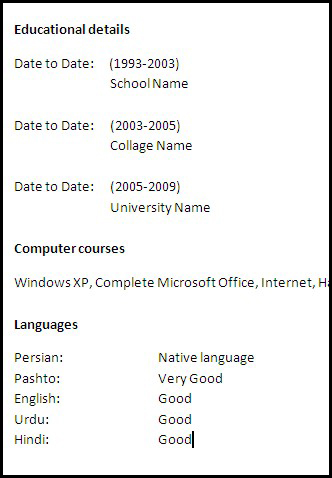
15) Now fill the below information at the below of “Educational details” as given below.


16) Type your “School name”, “Collage Name” and “University Name” at the below of your “join date” to School, College and University as given above.
17) Now is the turn of “Computer Courses”. First of all click after “Computer Courses” header then press a “Enter” from keyboard after that go to “Page Layout” and fill (0) value at the front of “After” in “Spacing” menu.
Now fill the names of those “computer courses” which you know write it at the below of “computer courses” as given below.


 18) Now is the last one header which is “Languages”. At the below of “Languages” you will write those “languages” which you know. First of all click after “Languages” header then press an “Enter” from keyboard after that go to “Page Layout” and fill (0) value at the front of “After” in “Spacing” menu.
Now write the name of Languages which you know at the below of “Languages” as given below. 


Now our Resume or CV has been created and i hope you all friends liked it


Link Word document - Link documents in Word - Create page to page Link

Link Word document - Link documents in Word - Create page to page Link

 This tutorial will show you how to make “Previous” and “Next” links between two or more pages. With the help of “Previous” and “Next” links you can go from one to another page. To make “Previous” and “Next” links in Microsoft Word 2007 follow these steps which are given below.
1) Start Microsoft Word 2007
2) Now click on “Save” command from “Office button” or click “Ctrl+S” from keyboard. After click on “Save” command type a name and click on “Save” button.
3) Now come to “Page 2” and Type “Next” as given below.

  4) Now select “Next” and click on “Copy” command from “Home” menu or click “Ctrl+C” from keyboard.
5) After click on “Copy” command click at the top of “Page 1”.
6) Now click on “Home” menu then click on “Paste” command and lastly click on “Paste as Hyperlink” as given below.

  7) As you will click on “Paste as Hyperlink” command a Link of “Next” will appear. Now hold “Ctrl” key from keyboard and then click on the “link”. As you will click on the “link” you will directly go the next page.
8) Now is the turn of “Previous” Link. To make “Previous” link write “Previous” at the top of “Page 1”.
9) Now select “Previous” as given below.


10) Now come to “Page 2” then clicks on “Home” menu and click on “Paste as Hyperlink” from “Paste” command.
11) Now like this make more links of “Previous” and “Next” above two pages. Our links have been created I hope you all friends like this tutorial. 
 

Find and Replace - Find and Replace in Word - Find and Replace in Word 2007

Find and Replace - Find and Replace in Word - Find and Replace in Word 2007

 The tutorial of the day is how to Find and replace your text in MS Word 2007. First we will work on “Find” command and then we will work on “replace” command. With the help of “Find” command we can Find a text in all of our document For example we have 3 pages in a document and now we want to search it so with the help of find command we can search a word and if you want to replace a name or word so then we can use Replace command. To use find command first of all follow these steps which are given below.

1) Start Microsoft Word 2007
2) Open a document with the help of “Open” command or click “Ctrl+O” from keyboard then select your document and lastly click on “Open” button.
3) As you open a document come to “Home” menu and then click on “Find” command or click “Ctrl+F” from keyboard as given below.


4) As you will click on “Find” command type a name and then click on “Find next” button as given below.

  
Replace:-
                              To replace your text follow the below option
1) Click on “Replace” command from “Home” menu or click “Ctrl+R” from keyboard.
2) Now type a word in “Find what” search and then click on “Replace what” and type a name as given below.

  
3) Now click on “Replace all” button and if you want to “replace” only that word which is selected now then click on “Replace” button.
This was tutorial of the day and I hope you all like this post    

Employee data sheet - Create a Data sheet

Employee data sheet - Create a Data sheet

 The tutorial of the day is “how to create an Employee datasheet in MS Excel”. Today we will work on an “Employee datasheet” and our work will depend on some functions which are SUM, COUNTIF, MAX and MIN. To start this interesting tutorial follows these steps which are given below.

1) Start “Microsoft Excel 2007”.
2) Write “SNo, Name, Position, Salary, Join date, Experience, Phone no and Address” at the top of Excel Row as given below.


3) Now select your text then “bold” and “color” your text and also make a “border” from “Home” menu as given below.


4) Now fill your information at the below of “SNo, Name, Position, Salary...” as given below.


5) Now choose “color” and “border” for your information text as given below.


6) Now select two cells down and then go to “Home” menu and then click on “Merge & Center” command as given below.


7) Now write “Total Salary” in this cell and use this function =Sum(D2:D11) at the front of this cell as given below.


8) After type of function press “Enter” from keyboard. Now like this fill these name at the below of “Total Salary” as given below.


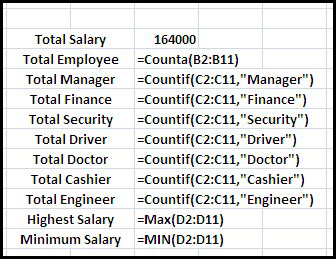
9) Now type these function at the front of all your text as given below.


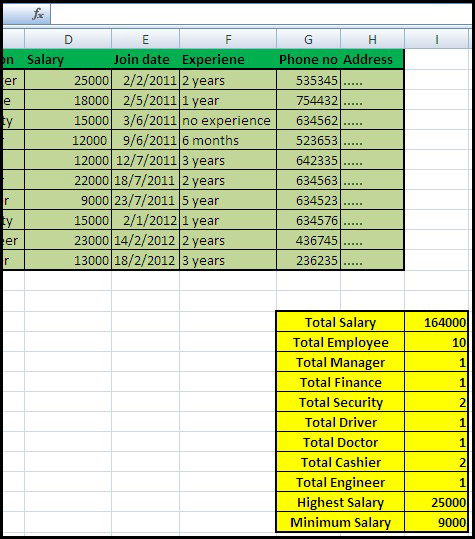
10) Fill the above functions one by one and your value will define as given below.


11) Now “color” and “bold” your text and also make “border” of your text as given below.